How to Convert an Image to Vector Illustrator
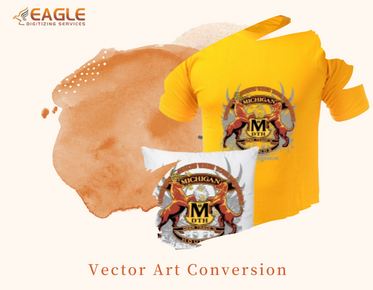
Converting an image to a vector format is a valuable skill, especially for graphic designers and artists aiming to maintain image quality regardless of the image's size. Vector images are composed of paths defined by mathematical equations, which means they can be scaled infinitely without losing quality. Adobe Illustrator is one of the most popular tools for vector conversions. Let's explore how to convert an image into a vector with Illustrator efficiently.
Understanding the Basics: Bitmap vs. Vector
The first step in converting an image to a vector format is understanding the differences between bitmap and vector graphics. Bitmap images, like JPEGs or PNGs, are pixel-based, meaning they rely on a grid of individual color points. Increasing their size often results in pixelation, a blurry or distorted appearance. In contrast, vector images are defined by paths, which can be curves, lines, and angles described by mathematical expressions. These can be scaled to any size without losing the image's integrity.
Preparing Your Image for Conversion
Before you begin converting your image in Adobe Illustrator, make sure your initial image is as clear and high-quality as possible. High-resolution images work best because they contain more detail, which aids in the conversion process. Simple designs with clear lines and few colors typically convert more accurately than complex images. Nonetheless, tools like Illustrator and professional services offer options for vector art services that enhance your image transformation.
Steps to Convert an Image to Vector Using Adobe Illustrator
Step 1: Importing Your Image
Begin by opening Adobe Illustrator. Go to File > Open and select the image you want to convert. After the image is loaded into the document, you are ready to begin the conversion.
Step 2: Use the Image Trace Tool
Once the image is in Illustrator, select it to activate the Image Trace option in the toolbar. Click Image Trace and choose from the preset tracing options that best correspond to your image complexity, like High Fidelity Photo or Black and White Logo. This tool simplifies converting jpg to svg using advanced algorithms to replicate the detail of your original image.
Step 3: Adjusting Trace Settings
For finer control, open the Image Trace panel (Window > Image Trace) to adjust settings such as Threshold, Paths, Corners, and Noise. These settings refine how closely the vector path follows the original image. The result appears in real-time, allowing adjustments to achieve the desired level of detail and color accuracy.
Step 4: Expand the Vector Paths
After achieving your desired trace, click the Expand button in the toolbar. This action converts the image trace into vector paths, enabling you to edit them like you would any other vector object in Illustrator.
Refining the Vector Image
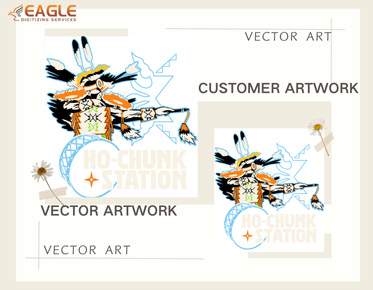
With the vector paths defined, you can further refine your vector using Illustrator's robust set of tools. Adjust colors, modify lines, or combine shapes to finalize your design. You can also utilize online services, [like Eagle Digitizing,] which offer expert vector art conversion assistance. Eagle Digitizing boasts a high satisfaction rate for its service, handling everything from raster to vector conversion, and transforming intricate designs into scalable vector graphics.
Additional Resources and Services
While Adobe Illustrator offers powerful vector conversion capabilities, sometimes enlisting professional vector drawing companies can ensure more complex conversions are handled smoothly. These services can perfect intricate designs and provide vectors suitable for professional applications such as embroidery, print media, and promotional materials.
Benefits of Vector Conversion
The popularity of vector graphics stems from their adaptability. They are essential in commercial printing, web graphics, and any application where image quality is a priority. Converted images can be resized infinitely without pixilation, making them invaluable for large displays like billboards or fine print on packaging. By converting to vector, you unlock superior color management, edit flexibility, and universal compatibility with various formats like AI, EPS, and PDF.
Conclusion
With the right tools and understanding, converting images to vector format is a streamlined process that enhances image versatility and usability. Adobe Illustrator provides a comprehensive solution, while professional services can offer additional expertise and quick turnaround for more complex projects. As technology advances, the importance of vector graphics continues to grow, embedding itself into the core of digital design and media production. By embracing vector conversion, you are poised to take advantage of these developments in diverse and creative ways. How might the ongoing evolution of design tools influence future improvements in vector graphics? The potential seems boundless, limited only by our creativity and exploration in this growing field.