
How to Trace Image to Vector With Image Trace Tool in Adobe Illustrator
Adobe Illustrator is a powerful tool for graphic designers, offering a wide range of features to create stunning vector graphics. One of the most useful features is the Image Trace tool, which allows you to convert raster images into vector graphics. This process is essential for creating scalable artwork that can be resized without losing quality. In this guide, we'll walk you through the steps to trace an image to vector using the Image Trace tool in Adobe Illustrator.
Understanding the Basics of Vector and Raster Images
Before diving into the tracing process, it's important to understand the difference between vector and raster images. Raster images are made up of pixels, which can become blurry when scaled up. In contrast, vector images are composed of paths defined by mathematical equations, allowing them to be resized infinitely without losing clarity. This makes vector graphics ideal for logos, illustrations, and any design that requires scalability.
Preparing Your Image for Tracing
To get started, open Adobe Illustrator and import the image you want to trace. It's best to use a high-quality image with clear lines and contrast, as this will yield the best results. You can import your image by going to File > Place and selecting your file. Once your image is placed on the artboard, you can begin the tracing process.
Using the Image Trace Tool
With your image selected, navigate to the Window > Image Trace panel. Here, you'll find various presets and options to customize your trace. The presets range from simple black and white to high-fidelity photo, each offering different levels of detail and color. Choose a preset that best suits your image and desired outcome.
Adjusting Trace Settings
After selecting a preset, you can further refine your trace by adjusting the settings in the Image Trace panel. Key settings include:
- Threshold: Controls the amount of detail in the trace. A higher threshold will result in more detail, while a lower threshold will simplify the image.
- Paths: Adjusts the number of paths in the traced image. More paths create a more detailed trace, but can also increase file size.
- Corners: Determines the sharpness of corners in the trace. A higher value will create sharper corners.
- Noise: Reduces small artifacts in the trace. Increasing the noise value will remove smaller details.
Expanding and Editing the Trace
Once you're satisfied with the trace, click the Expand button in the control panel. This will convert the trace into editable vector paths. You can now use Illustrator's editing tools to refine your vector artwork. Use the Direct Selection Tool to adjust individual anchor points and paths, or the Pen Tool to add or remove paths as needed.
Saving Your Vector Image
After editing your vector image, it's time to save your work. Go to File > Save As and choose a vector format such as AI, EPS, or SVG. These formats preserve the vector paths and allow for easy scaling and editing in the future.
Applications of Vector Tracing
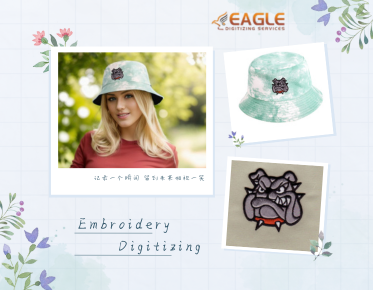
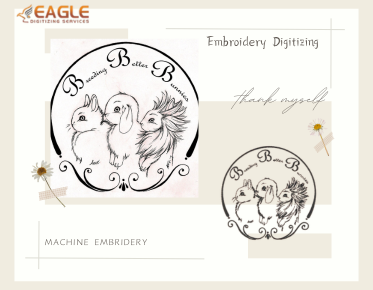
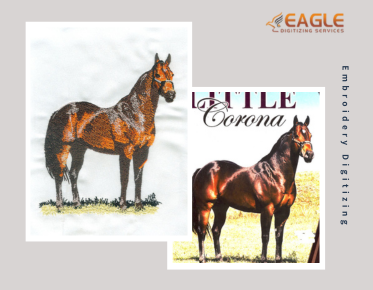
Vector tracing is widely used in various industries, from graphic design to embroidery digitizing. For instance, embroidery digitizing services often require vector files to create precise stitch patterns. Companies like Eagle Digitizing specialize in converting artwork into embroidery files, ensuring high-quality results for promotional products and corporate branding.
Tips for Successful Image Tracing
Here are some tips to ensure a successful image trace:
- Start with a high-resolution image to capture more detail.
- Experiment with different presets and settings to find the best result for your image.
- Use the Direct Selection Tool to fine-tune paths and anchor points.
- Consider simplifying complex images before tracing to reduce file size and improve performance.
Exploring Further Possibilities
Vector tracing opens up a world of possibilities for designers and businesses alike. Whether you're creating logos, illustrations, or embroidery designs, mastering the Image Trace tool in Adobe Illustrator can greatly enhance your creative workflow. As technology advances, we can expect even more sophisticated tools and techniques to emerge, further expanding the potential of vector graphics.