
How to Vectorize an Image in Adobe Photoshop
Vectorizing an image can transform it into a scalable graphic, perfect for various design applications. Adobe Photoshop, though primarily a raster-based design tool, provides some effective methods to convert raster images into vector format. Let's explore these techniques step-by-step.
Understanding Vector Graphics vs. Raster Images
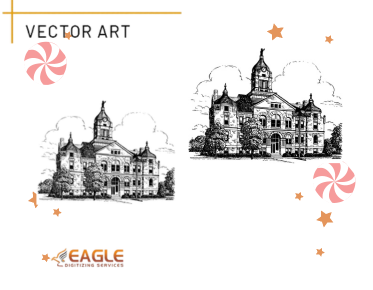
Before delving into the specifics of vectorizing in Photoshop, it's essential to understand the difference between raster and vector graphics. Raster images are made up of pixels, making them resolution dependent. When you enlarge a raster image, it can become pixelated. In contrast, vector graphics use mathematical paths allowing them to be scaled infinitely without losing quality. This makes vector graphics ideal for logos, icons, and intricate designs.
Preparing Your Image for Vectorization
Start by choosing an image that is simple enough for vectorization. Complicated images with too many details can be tough to vectorize in Photoshop. Black and white images or those with distinct color contrasts work best.
Using Adobe Photoshop to Vectorize an Image
Let's walk through the steps needed to vectorize an image using Adobe Photoshop:
Step 1: Open Your Image
Open the image you want to vectorize in Photoshop. It’s crucial to have a high quality image; the better your starting resolution, the better the vectorization will turn out.
Step 2: Convert to Grayscale
Convert your image to grayscale by going to Image > Mode > Grayscale. This step helps by reducing the complexity of colors, making it easier to trace.
Step 3: Adjust the Levels
To bring out the details in your image, adjust the levels by selecting Image > Adjustments > Levels. Drag the sliders to increase the contrast between the elements you want to vectorize.
Step 4: Make a Path
Use the Magic Wand Tool to select parts of your image. Once selected, go to the Paths Panel and click on Make Work Path from Selection. Set the Tolerance to a low value, like 1, to ensure paths are tightly aligned with your image edges.
Step 5: Create a Vector Mask
After defining your paths, convert them into a vector mask by selecting Layer > Vector Mask > Current Path. Your image is now in a vector mask format, allowing scalability without loss of quality.
Exporting Your Vector Image
Once your image is vectorized, you can save it in a vector format. Use Adobe Illustrator for this step by exporting it as an EPS or SVG file. Just select File > Export > Paths to Illustrator and follow the prompts.
Why Utilize Vectorization Services?
While Photoshop provides a basic framework for turning images into vectors, services like Eagle Digitizing offer advanced solutions with higher precision and customization. Whether it's converting art to vector, raster to vector conversion services, or creating intricate vector art services for commercial use, a specialized service can handle complex tasks more efficiently.
Eagle Digitizing comes with a promise of quality, providing services like vector tracing, logo conversion, and image vectorization that cater to businesses seeking perfection in print-ready designs. With their highly skilled team and quick turnaround, they remain a favored choice for businesses needing bulk vector conversions without compromising quality.
Future of Vector Graphics
As technology advances, the need for vector graphics is set to grow. The ability of vectors to adapt to various screen sizes and devices makes them indispensable for modern design needs. Thus, investing in learning vectorization techniques or using reliable services like Eagle Digitizing can prepare businesses for tomorrow's design challenges.