
How to Use Pen Tool for Vector Conversion in Adobe Illustrator
Adobe Illustrator is a powerhouse for graphic designers, offering tools that enable endless creativity and precision. The Pen Tool, in particular, is indispensable for vector conversion, which is essential for ensuring scalability and quality in digital illustrations. Whether you are a seasoned professional or a novice trying to enhance your skills, mastering the Pen Tool in Illustrator is pivotal.
Understanding The Basics of The Pen Tool
The Pen Tool in Adobe Illustrator is primarily utilized for creating paths by defining anchor points, which establish curves and lines. These paths are the core components of vector graphics, which unlike raster graphics, do not lose quality when resized. The concept of vector graphics is crucial in industries that require high-quality, scalable images, such as branding and advertising.
Getting Started with Vector Conversion
Start by opening Adobe Illustrator and selecting the Pen Tool from the toolbar. Familiarize yourself with its various functions such as adding, deleting, or converting anchor points, which help in crafting precise paths. Using the Pen Tool effectively involves understanding how to manipulate anchor points and handles to draw desired shapes and curves. This is the foundational step towards vector conversion across various applications.
Practical Application of The Pen Tool
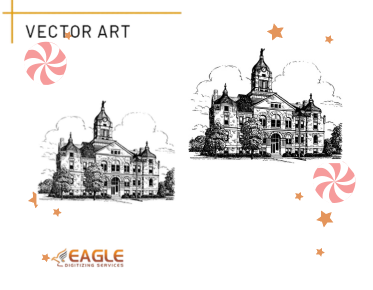
Once you have a grasp on the basics, put it into practice by tracing images. Import a raster image that you aim to convert into a vector. Using the Pen Tool, place anchor points along the edges of the object in your image to define its shape. As you perfect the curves and paths, you transform the image into a vector, a process that is fundamental in professional design environments.
Refining with Advanced Techniques
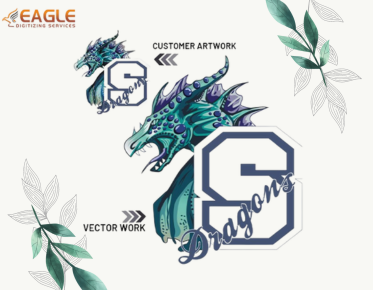
For intricate images, leveraging the Pen Tool alongside other Illustrator features like Layers can enhance your work. Having separate layers for different components of an image allows easy modification and iteration. This meticulous approach is exemplified in services provided by companies like Eagle Digitizing, who excel in vectorizing artwork, ensuring precision and detail through advanced vector conversion techniques.
Finalizing and Saving Your Vector Work
After completing your path creation with the Pen Tool, it’s crucial to finalize your work for scalability and use in various formats. Illustrator enables saving files in several vector formats such as AI, EPS, or SVG, each suited for specific applications be it printing, web graphics, or digital presentations. This capability is essential for maintaining the integrity and quality of the design across different mediums.
The Role of Professional Services in Vector Conversion
While mastering vector conversion with the Pen Tool is invaluable, partnering with professional services can maximize results, especially for complex projects. Eagle Digitizing, for example, offers comprehensive vector conversion services that cater to various industries, from promotional marketing to detailed artwork conversions. Their expertise ensures high-quality conversions with swift turnaround times, a necessity in fast-paced design environments.
Exploring Future Opportunities with Vector Graphics
As you continue to refine your skills with the Pen Tool and vector graphics, consider the expanding future of digital design. With the increasing demand for high-quality, scalable graphics in digital marketing, website design, and printed media, proficiency in vector conversion offers valuable opportunities for career enhancement and creative expression. Dive into this journey with an open mind, practice relentlessly, and let the vector world inspire you towards new artistic horizons.
This blog presents a comprehensive guide to using the Pen Tool in Adobe Illustrator for vector conversion, integrating the importance of professional services, and encouraging further exploration of vector graphics.